Building Link (Tools for Residents and Property Teams)
Use Building Link to manage requests, packages, bookings, and building updates.
What Building Link Does for Residents
Building Link is a resident portal that helps people and property teams manage day-to-day building needs. Residents can send maintenance requests, find shared documents, check package updates, and read building news. Property staff can sort requests and share updates in one place. The exact tools depend on each building’s setup.
Think of it as a shared service desk, not just a message board. A resident might report a leaking tap, then check the request for updates. Another resident might look up move-in rules before booking an elevator. These tasks can be easier to track than email or paper forms.
Building Link is used at many residential properties, but access is set up by each property team. If you are searching for a “1 River Place Building Link” or “Koolani Building Link” login, confirm the correct portal with your building office. Do not assume that search results or old links are current.
- Residents can send and track service requests.
- Building teams can post notices and share files.
- Some buildings offer package updates and amenity bookings.
- Available tools vary by property and user role.
Features That Support Daily Building Life
The most useful features depend on the needs of each community. A maintenance form can capture the room, issue, and best time to enter. Adding clear details and a photo can help staff understand the problem before they visit. Residents should avoid sharing sensitive personal details in a request unless staff need them.
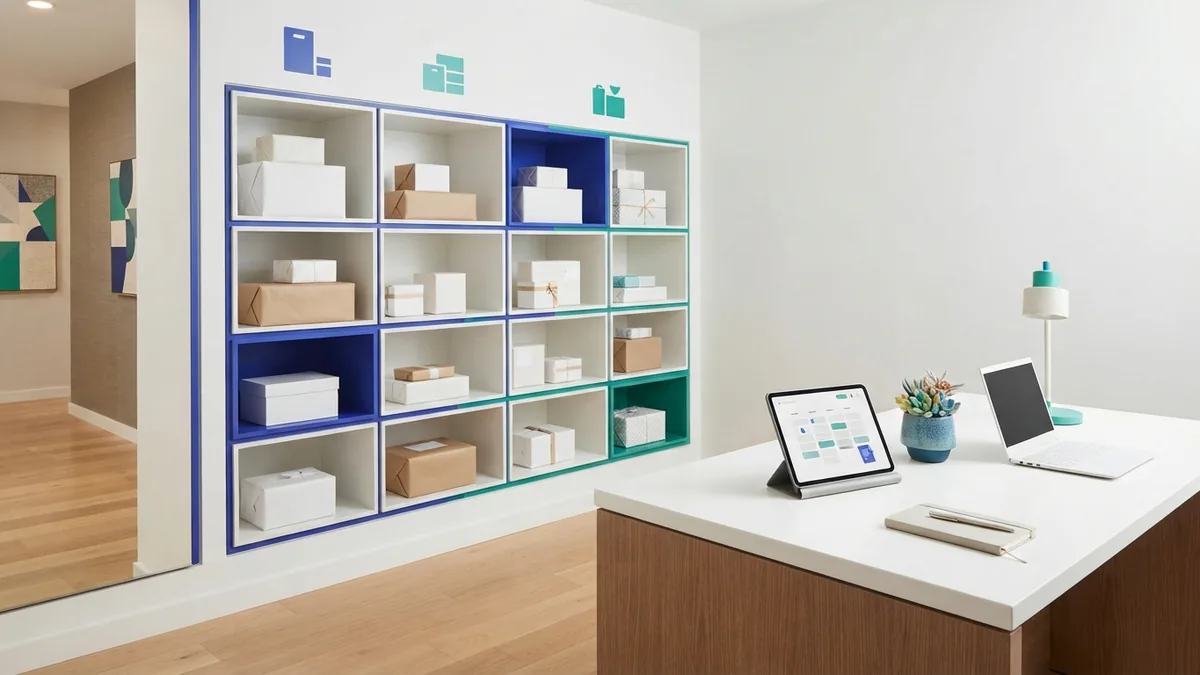
Package tools can show when a delivery is logged or ready for pickup. Updates may not appear at the same time as the carrier’s tracking page. Ask your front desk how package entries are handled, especially for large items or deliveries that need a signature.
Amenity reservations can let residents view open times and request a booking. Community announcements may cover water shutoffs, events, repair work, or changes to building rules. Document access can also make forms and policies easier to find. These features work best when property staff keep the details current.
Some tools may not appear in every resident account. A feature can be turned off, limited to certain roles, or managed through another service. Check with management before treating a missing button as a system fault.
How to Keep Your Building Link Account Secure
Use the access link or app details supplied by your property team. Check the web address before signing in, especially if you received it in an unexpected message. If the address looks unfamiliar, contact management through a known phone number or email.
Choose a password that you do not use for other accounts. If the portal offers extra sign-in checks, turn them on. Lock your phone or computer when you step away, and sign out on shared devices. These small steps reduce the chance that someone else can view your account.
Share only what the task requires. A maintenance request may need your unit number and a description of the issue, but not your bank details. Do not send passwords or sign-in codes to staff by email or text. A real staff member should not need your password.
- Open the portal from a trusted property message or saved bookmark.
- Use a unique password and keep your device locked.
- Check privacy settings and limit details in requests.
- Report suspicious messages or account activity to management.
Property teams also have a role in keeping resident data safe. They should give access only to people who need it and remove accounts when residents move out. Ask how the building handles account changes and who can see submitted requests.
Common Building Link Problems and Fixes
If Building Link is not working, first check your internet connection and confirm you are using the right property portal. A saved link may be old, or your building may have changed its sign-in process. Try the current link supplied by management before resetting your password.
For login trouble, check that your email address is correct and that caps lock is off. Use the password reset option if one is available. If no reset email arrives, check your spam folder and ask the building office to confirm the email on file.
A missing feature is often a setup issue, not a broken account. Amenity bookings, package tracking, and document access may depend on property settings. Contact management with the feature name, your device type, and what you expected to happen. Do not include your password.
If an app or page freezes, close it and try again after a short wait. You can also test another browser or update the app. When reporting a fault, note the time and any error message. That helps staff tell a local sign-in issue from a wider service problem.
Why Building Link Can Help a Community
A shared portal gives residents one place to handle common requests. It can reduce repeated calls and help staff see which issues need attention. Clear request records also help teams spot repeat problems, such as a door lock that fails more than once.
Announcements can reach more residents than a notice placed in one lobby. Document access can cut down on requests for forms that staff have already shared. Package updates and amenity bookings can make routine tasks less reliant on desk hours.
These gains depend on good upkeep. Staff need to close old requests, post timely notices, and explain where residents should go for urgent help. The portal should not replace emergency services or a direct call about an immediate safety risk.
For residents, the main benefit is a clearer path to answers. For property teams, it is a more organized way to handle daily work. A well-run portal supports both sides.
Best Practices for Residents
Start by saving the official portal link and checking your contact details. Set up alerts that matter to you, such as package updates or building notices. Review the portal after move-in, since access and available tools may change as management completes your account setup.
Write requests so staff can act on them. State what happened, where it happened, and when staff can enter if needed. For example, “The kitchen sink is leaking under the cabinet; I noticed it this morning” gives more useful detail than “sink issue.” Add a photo only when it helps explain the problem.
Use the right channel for the right need. Send routine repair requests through the portal if your building asks residents to do so. Call the front desk about urgent issues, such as an active leak. Keep a copy of key documents outside the portal if you may need them during an outage.
If you live in a building such as 2 Northside Piers, 45 Wall Street, or 99 John Street, ask management for the property’s official sign-in steps. Search terms like “45 Wall Street Building Link” can point to old or unrelated pages. A direct confirmation from the building is safer.